MCP Quickstart
This guide takes you from Settings → Integrations to a successful connection list.
Before you start
You need:
- a Sheet Best account where the AI assistants · MCP card is available;
- an existing Sheet Best connection. If needed, create a connection before continuing;
- an MCP-compatible client that supports remote servers and bearer-token authentication.
1. Enable MCP support
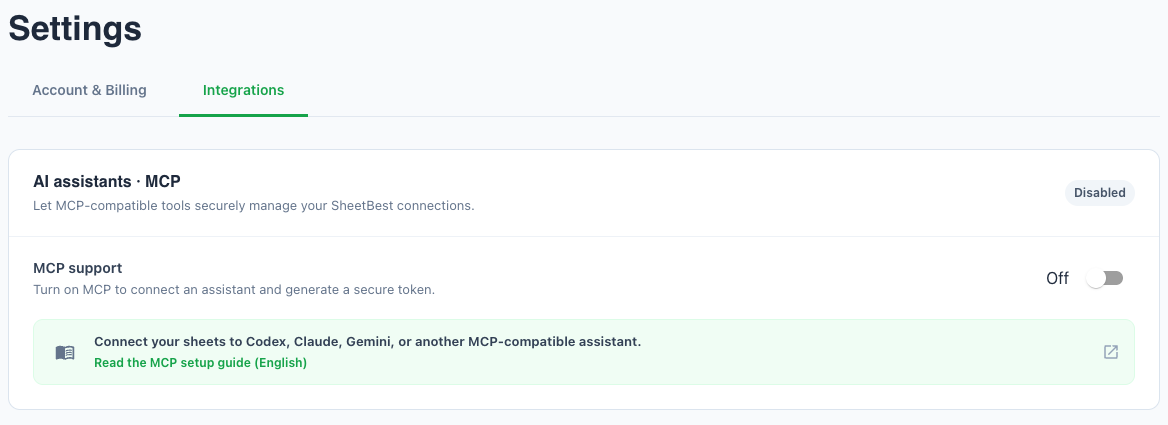
Open Settings → Integrations → AI assistants · MCP in Sheet Best, then turn MCP support on.
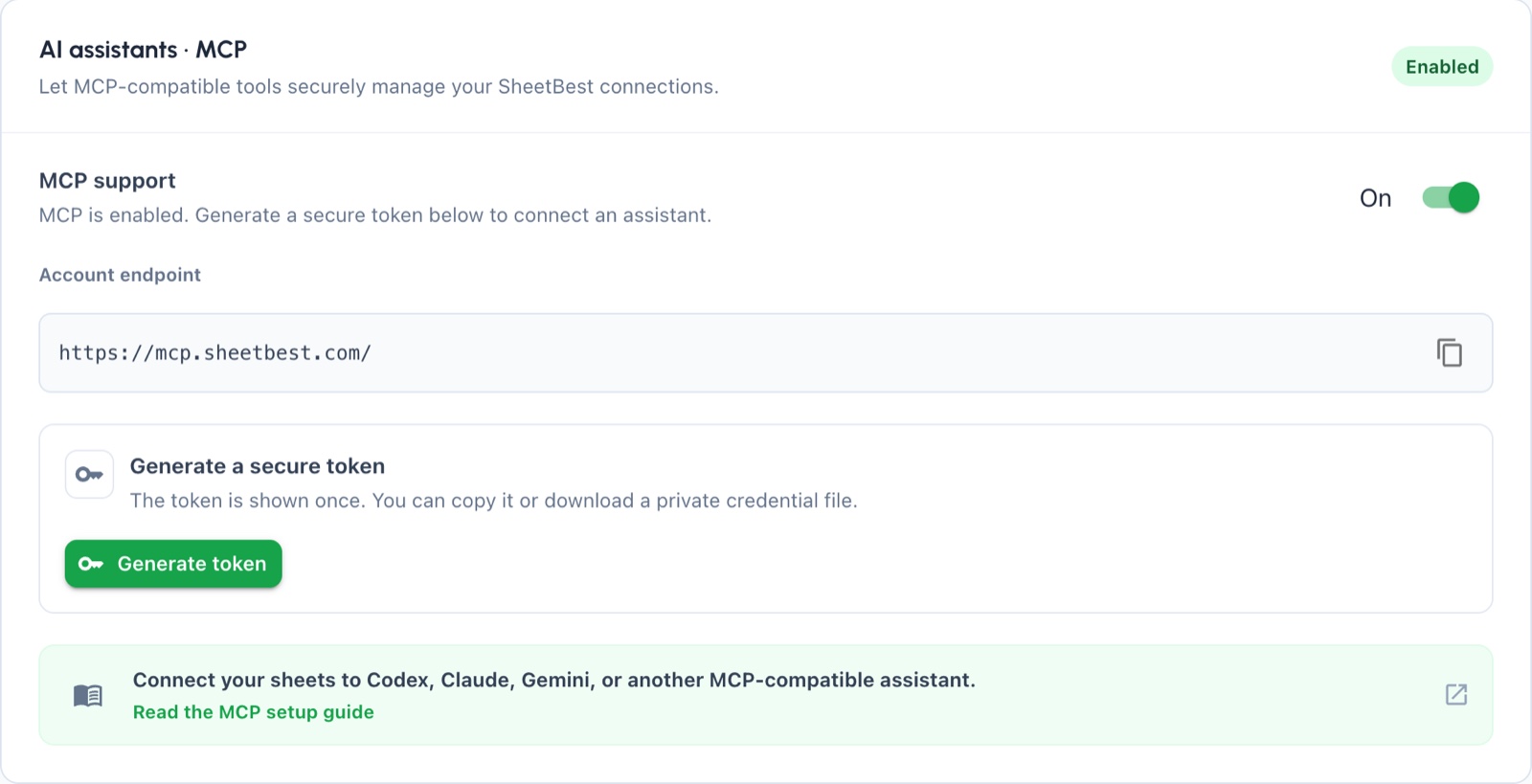
The card displays your environment-specific Account endpoint and a Generate token action.
2. Generate and store your token
Select Generate token. In Your MCP token is ready, copy the token or select Download credentials.
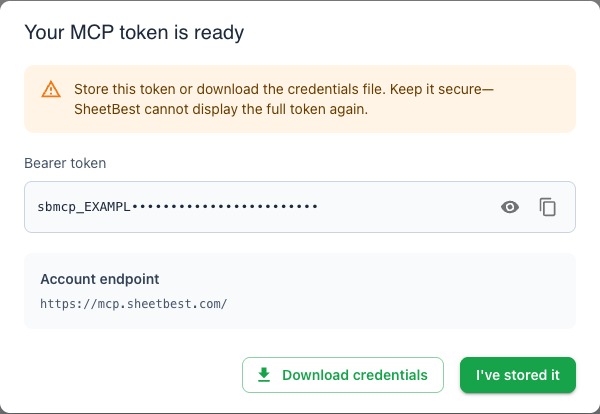
The raw token is shown only once. Do not put it in a screenshot, URL, issue, or source file. If you give the downloaded credential file to a trusted agent in the next step, tell it not to display or log the token. If you lose the token, replace it from Settings → Integrations → AI assistants · MCP.
After saving the credential securely, select I've stored it.
3. Ask your agent to configure Sheet Best
If your agent can update its own MCP configuration, give it the downloaded
sheetbest-mcp-credentials.txt file and ask:
Configure Sheet Best as a remote Streamable HTTP MCP server using this credential file. Keep the token in the authorization header, and do not display or log it.
Only give the credential file to an agent and MCP client you trust.
If your client cannot configure itself, enter these values manually in its remote MCP server settings:
| Setting | Value |
|---|---|
| Server URL | The Account endpoint copied from Sheet Best |
| Authentication | Bearer token |
| Token | The value beginning with sbmcp_ that you stored in step 2 |
This is a client-neutral description, not a configuration file. Labels and formats differ between MCP clients; follow your client's current instructions for adding a remote Streamable HTTP server.
Send the token as an authorization credential. Never append it as a query parameter.
4. Work through your AI assistant
You can now ask your AI assistant to manage your Sheet Best connections. For example:
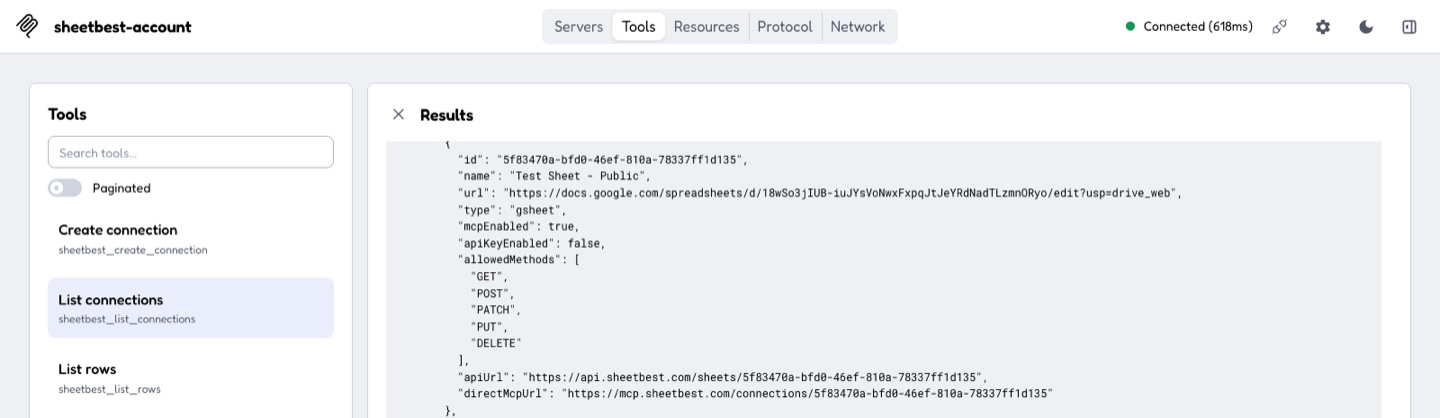
List my Sheet Best connections.
Or give it a Google Sheet URL and ask:
Create a Sheet Best connection for this Google Sheet.
Your assistant can choose the appropriate Sheet Best tool from your request. For example, listing connections returns each connection's name, enabled methods, MCP status, REST API URL, and Direct MCP URL.
If your assistant cannot complete a request, see MCP troubleshooting.
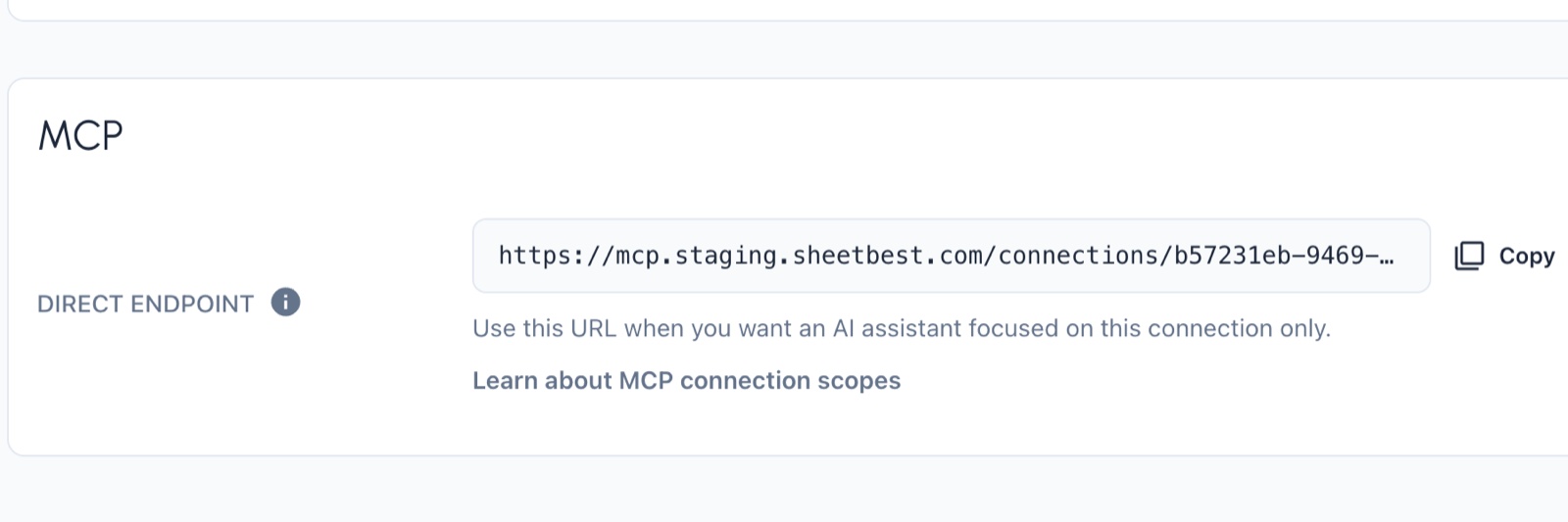
The main MCP endpoint lets your AI assistant work with all your MCP-enabled connections. To limit it to one connection, configure the assistant with that connection's Direct MCP URL instead.
Copy the URL from the Sheet Best connection page and authenticate it with the same MCP token. Learn how direct connection endpoints work.
Success looks like
- Your AI assistant can list or create Sheet Best connections.
sheetbest_list_connectionsreturnsapiUrlanddirectMcpUrlfor each connection.- An optional direct server exposes only the tools allowed by its connection.
If a server does not connect or a tool is missing, see MCP troubleshooting.
Next step
Review the connection and tool reference before allowing an assistant to write to your sheet.